Lighter still
19 April –
The end of Windows for me
The evening of 15 November 2018. For many months on end, Windows 10 tries to force its ‘Spring Creators Update’ upon me. But it never succeeds: after about 15 minutes (perhaps shorter, but it feels like at least 15 minutes) the update ends at 30% completed, in an unhandled exception, the nature of which has never become clear. In another wasted quarter of an hour, in which the computer cannot be used, the changes are rolled back, so the Hewlett & Packard Pavilion laptop I’m using, bought on 2 July 2016, is back at a Windows 10 release dating from mid or end 2017.
That fatal evening it’s worse: the rollback also fails. There’s an endless loop of attempts to remedy the situation. Switching the computer off by holding the on-off switch depressed doesn’t help: after that it just starts over.
So I switch to a backup computer, a Packard Bell bought 2 April 2015. It has Windows 8 on it, which doesn’t get that annoying update.
I kept using that older computer until 26 July 2019. Another disastrous incident: I let the laptop slip off my lap, causing it to hit the floor hard on one corner. The system offered a diagnosis and tried to revert it to an earlier Windows revision, but that never succeeded.
At that point I made a decision: to finally say goodbye to MSDOS and MS Windows, OSes I had never liked but had been using since 1990, when I switched to a different employer after five years with Nixdorf Computer, where in 1985 I had got to know Unix. Despite those almost 30 years of missing UNIX, I was still familiar with it, because I was using several implementations of Unix’s userland utilities for MSDOS and Windows, most recently CygWin. And my website was running on VPSes, first under OpenBSD and soon after always under FreeBSD.
Quest
The first Linux I tried was Linux Mint 18.3 Sylvia. I immediately liked it. Where Windows 8 and 10 offered me lots of things I will never need, and hid what I do need ever deeper within the system, like a command line, a text editor and a browser, Linux Mint has a start button in the lower left corner of the screen, and the menu it invokes is full of useful preinstalled programs.
On 7 and 8 September 2023 I noticed that every time I used Youtube under
Linux Mint, meanwhile probably version 20.1 Ulyssa, the fan soon became
loud. Program top revealed that desktop environment
process cinnamon was using up about 230% of processor
capacity. Three types of Firefox processes were using around 45% each,
so almost all four processor cores (two physical cores, capable of
running 4 threads) were in constant use. Then it soon gets hot.
I read that Xfce was more efficient, and an experiment on the unused ex-Windows HP Pavilion confirmed that. The look & feel remained largely the same, so I might switch to it, to Linux Mint Xfce.
However, the problem with Cinnamon was gone after an automatic kernel
update. That was in kernel 5.15.0-83-generic. Temporarily
returning to 82 or 79 did not make it come
back. But while logging out and in again, a landscape-like symbol
appeared (perhaps misinterpreted by me; I’m bad with icons) by
which I could switch between the efficient and the inefficient version.
The cause was ‘software rendering’, i.e. not using the graphical
co-processor, so the normal processor cores, which are not very
well suited for it, had to do that work.
Detection:
inxi -Fxz | grep -i -B1 render
If it says:
OpenGL: renderer: Mesa Intel UHD Graphics (CML GT2)
the special hardware is used, and CPU usage is low. But with:
OpenGL: renderer: llvmpipe (LLVM 15.0.7 256 bits)
a software emulation for the general processor cores is used,
which is much slower and inefficient.
Desktop menu links
Nevertheless, my quest for more efficient desktop environments had already started, unstoppably.
I had never liked, or never understood, the object-oriented desktop paradigm that was popularised from the 1990s onward. Before they used computers, people were supposed to have rather chaotic piles of documents and folders lying before them on their desk, then pick one up to work on it. Then when computers were introduced, the chaos should move from desktop to screen, where workers clicked or double-clicked on a document, and the OS opened it in the associated program – assuming a one-to-one relation.
Is that really a pleasant or effective way to work? Not for me. I still think in terms of programs (not apps!) from which (or with which, in the CLI – command line interface) you open files. Files that may represent documents, or something else.
Anyway, to each their own, but I always used the desktop as a menu system. That worked in Windows, and it worked in Linux Mint. No documents, but launchers on the desktop, or rather, in subfolders, and sometimes subfolders in subfolders, to keep things organised.
There the problems began with Linux Mint Xfce.
- It seems Xfce keeps track of what is ‘trusted’ for execution, and what isn’t. Initially a new launcher link isn’t trusted, unless it was created from the Xfce menu. It can be changed by right-clicking, the Permission, or more to the right, Launcher, Set this file as trusted.
- Only for launcher links on the desktop’s top level, the descriptive
name is shown. However once the link is moved into a subdirectory, what
you see is the physical file name, which ends in
.desktop. Such a move also removes the ‘trusted’ status. - Also, any associated icon will no longer be visible once inside
a subfolder. Strictly, you can still use the links for starting program,
but they’re ugly and uncomfortable.
When instead of moving, you copy-paste the launcher link, the icon is preserved, but the description won’t be shown.
- In fact all this is intended behaviour,
“.desktop launchers are not designed for your particular use case.".
This is about Ubuntu in general, not specifically Xcfe. Apparently, earlier on I had been using an intentional user friendly addition to Linux Mint with desktop Cinnamon.
jgmenu
The menu in Linux Mint Cinnamon was OK, when installing a new program it was automatically updated, but I never found a way for the user to enhance or alter it.
It came as a relief to discover jgmenu. Fully configurable.
I started using that for Linux Mint Xcfe in the fourth quarter of
2023, and also for Lubuntu in early 2024. Lubuntu is Ubuntu with
LXQt (formerly LXDE) as the desktop environment.
By June 2024 I had to make a choice of whether to go from Lubuntu 23.10
to 24.04, or change to Bunsenlabs Boron, of which I had become a fan.
Bunsenlabs was the winner. And the meanwhile all too familiar
jgmenu is one of its components, I was glad to discover.
Bunsenlabs Boron was OK, based on Debian 12 Bookworm, but like so many Linux distributions, it too requires periodic upgrade. I looked at the RC3 (Release Candidate 3) of the successor, Bunsenlabs Carbon, built on Debian 13 Trixie. And I didn’t like it. Ugly icons in the system tray, with fat black lines on white or gray backgrounds.
I found that taskbar tint2 was replaced by
xfce4-panel.
Linguistic intermezzo: to me a panel is something with a considerable width, but also a considerable height. A bar, like a taskbar, is wide, but has a limited height, like for one of text and icons. (I like my taskbars horizontal, not vertical.)
In Bunsenlabs Carbon, the panel is vertical and put against the left side of the screen. OK, that’s configurable of course. But when you change it to horizontal, it is NOT placed top or bottom, but in the middle of the screen, at half-height. Why is that the default? Why would anyone ever want such a position? I don’t see it.
Repositioning was sometimes possible, sometimes not, or it was unclear how exactly to do that.
Fluxbox
In the first months of 2026 I experimented with various routes towards a rolling release solution, involving Alpine Linux, Fluxbox, Openbox, Manjaro and Arch Linux. Eventually I managed to get Fluxbox running satisfactorily on Debian Testing, which is currently Forky. I have this installed on all my non-server computers now.
It is a very light and rather simple system, that nevertheless serves all
my needs. Unlike Bunsenlabs Linux, Fluxbox does not need separate
components for a taskbar (formerly tint2, now
xfce4-panel) and a menu (jgmenu).
Fluxbox has that all included out of the box.
Three of its facilities I do not use, so it seems this basic and simple system is still too complicated and advanced for me:
- Workspaces: I understand what they are, but I don’t like them, so I set the number of them to one.
- The slit: despite reading about it more than once, I don’t understand what it is and what it is for, and I don’t think I need it.
- Tabbed windows: I don’t I need those, and I haven’t found out yet how to use them. I can’t find a middle button on my touchpad.
Although Fluxbox can be seen as a replacement for other desktop environments (DE), in fact it isn’t a desktop, not in the sense that you could put files or documents on it – which I never do; nor any program launchers – which in the presence of a flexible menu system I do not need.
You can however specify a photograph file as the desktop background.
Installing Fluxbox on Debian
Install no desktop
I used Debian, but the basis can probably be any Linux distribution, like Alpine Linux, Arch Linux, Ubuntu, etc. In fact, many instructions I found were for Arch Linux, but most worked also for Debian.
So I installed a normal Debian ISO from a memory stick, and at the point where you can select one or more desktop environments (Gnome, KDE, Mate etc.), I selected none! That shortens up the installation process a lot, because a lot of application programs, like Open Office and a browser, will not be installed.
After rebooting when so instructed, having the memory stick removed, the computer should boot to a non-graphical login prompt. Log in with the prepared user name and password.
Keyboard and touchpad
Two preparations to make life easier:
sudo nano /etc/default/keyboard
Make sure it has
XKBVARIANT="intl"
so you will be able to type international letters (á, ç, ß and some such)
using deadkey. That is, if you need that and want that.
Then do, for the touchpad if your computer has one:
sudo nano /etc/X11/xorg.conf.d/99-touchpad.conf
and put this there if it isn’t already:
Section "InputClass"
    Identifier "touchpad"
    MatchIsTouchpad "on"
    Driver "libinput"
    Option "Tapping" "on"
    Option "ScrollMethod" "edge"
    #Option "NaturalScrolling" "true"
EndSection
As a result, you will be able to tap the touchpad to emulate a click,
instead of having the press the left touchpad button. ¿Why isn’t
that the default?, I wonder.
It also sets scrolling to work at the right border of the touchpad,
not with two fingers (twofinger, the default) in the
middle. Just a personal preference. You can choose your own.
NaturalScrolling is like swiping on a tablet or smartphone.
I prefer to move the window, not the text.
See also my article Comfortable command line.
Installing Fluxbox and Xinit
A crucial moment: we are going to install Fluxbox now.
sudo apt update
sudo apt install fluxbox
sudo apt install xinit
cp -p /etc/X11/xinit/xinitrc ~/.xinitrc
With the command startx you can now already activate Fluxbox! Hurray.
For initial testing it is good to install a terminal emulation,
like lxterminal or alacritty, and
a browser.
One step further (assuming bash is your shell of preference)
put the following at the bottom of ~/.bashrc (the symbol ~ stands for
your home directory):
if test -z "$DISPLAY" && test -n "$XDG_VTNR" && test "$XDG_VTNR" -eq 1
then
# exec startx
  startx
fi
This causes Fluxbox to start automatically after the non-graphical server-like console login. If you are satisfied with that, in fact you are already done at this point!
(You don’t have to remove the above code, if you add the display manager.)
Display manager
Display manager
is a strange term, in my opinion. What in fact is meant by it, is
a graphical login program. Several exist. I chose lightdm.
After installation (sudo apt install lightdm) it works
right away: the system boots into it, and after you enter
user and password, Fluxbox starts.
If in /etc/lightdm/lightdm.conf you comment out:
greeter-hide-users=false
, the default administrative user will be pre-filled, and all you
need to enter is the password.
How is it possible that this works immediately, even though this
was a non-graphical Debian install? The answer is in the
intricacies of systemd. When I do an
ls -ld `locate default.target | grep -v timeshift`
one of the things I see, regardless of whether a display manager
has already been installed or not, is this:
/usr/lib/systemd/system/default.target -> graphical.target
But the command
file /etc/systemd/system/display-manager.service
only shows a result after a display manager has been installed:
/etc/systemd/system/display-manager.service: \

    symbolic link to /lib/systemd/system/lightdm.service
(Note that /lib is a symbolic link to usr/lib
on this system.)
This means that before the display manager is there, the system already wants to run in full graphical mode, but it can’t, because of the absence of a desktop environment including a display manager. Prediction: installing a display manager will make it work without any further measures. And indeed it does!
Configuring Fluxbox
Directory
All the configuration files for Fluxbox are in the directory
~/.fluxbox, although there can be references to other
locations. That’s .fluxbox with a dot, so the directory
is normally hidden, but it can be seen with the ls option
-a.
I publish a few of my own config files here in the web tree, in a directory
with that same name
.fluxbox .
Although of course your config wishes may be very different from mine,
you may want to examine and try mine as a starting point for your own
experimentation, to reach your optimal way to use Fluxbox.
An impression of my Fluxbox screen
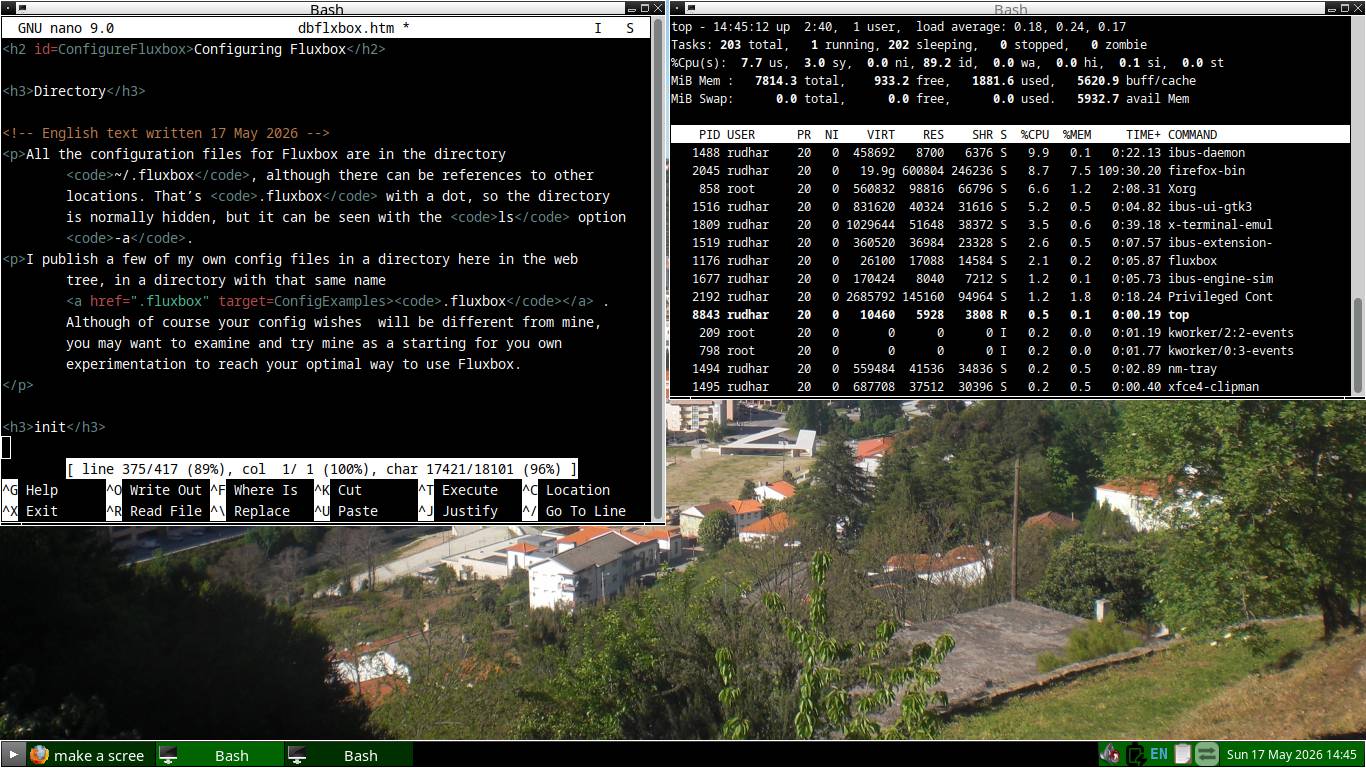 is here (click to enlarge).
This also shows how light this system is: I had to do quite some clicking
to and fro between the processes, in order to make the Fluxbox process appear
in the CPU usage sorted
is here (click to enlarge).
This also shows how light this system is: I had to do quite some clicking
to and fro between the processes, in order to make the Fluxbox process appear
in the CPU usage sorted top list at all.
init
Some notable changes I made in the init file, in comparison with the
defaults – which will only become visible in the file, once you have
made a change using one of the Fluxbox submenus – I’ll describe below.
session.screen0.toolbar.tools
The default for this is:
prevworkspace, workspacename, nextworkspace, clock, prevwindow, nextwindow, iconbar, systemtray
I don’t like that. I don’t do workspaces, I want the clock at the right of the horizontal taskbar, and in addition to being able to call up the menu by right-clicking in the desktop (which is unreachable when one or more windows are maximised), I want a start button, like in Windows 95 or 98 etc., and like in Linux mint, in the left end of the task bar. In addition, I arranged that Ctrl-Escape, Windows-m, Windows-space also invoke the menu.
So the setting session.screen0.toolbar.tools in file
~/.fluxbox/init in my configuration of Fluxbox is:
rootmenu, iconbar, systemtray, clock
session.screen0.iconbar.alignment
Also, session.screen0.iconbar.alignment is not Relative for
me, but Left. Relative means that the space in the iconbar is divided
equally between active tasks. I want each to take just enough space
so it is recognisable, and they should be left aligned.
session.screen0.fullMaximization
I have this set to false, not true, so maximising a window leaves room for the taskbar, and does not hide it.
session.screen0.iconbar.mode
The default value for this is {static groups} (minimized=no).
It means a minimised window and task disappears from the desktop
(of course, that’s the purpose of minimising), but it also disappears
from the taskbar, so it is nowhere to be seen anymore at all. Only
Alt-Tab can make it reappear. I find that confusing.
Therefore, the value in my ~/.fluxbox/init is:
AllWindows, which means that all tasks, minimised or not,
can always be seen in the taskbar.
session.screen0.focusModel
I have ClickFocus here, although MouseFocus
also has its charm.
overlay
The ~/.fluxbox/overlay file is useful to record small
deviations from an existing Fluxbox style. Of course my preferences
will be very different from yours, but my file may be useful to
see how you can change things, not to what.
startup, menu, keys
I publish those too, without any comments, for your inspiration. The menu file was slightly edited for privacy reasons.
Copyright © 2026 by R. Harmsen, all rights reserved.